

EndNote Import and Export
Locate the .nbib and .ris files exported from the databases (see Search Strategy), and double-click each to import into EndNote.
Create a Project
In EndNote X9, click File → New to create a .enl file to store and manage all references for this project.
Import References
Double-click the .nbib file; all PubMed references will be automatically imported. In My Groups, create a group named PubMed #1 and drag all imported references into it.
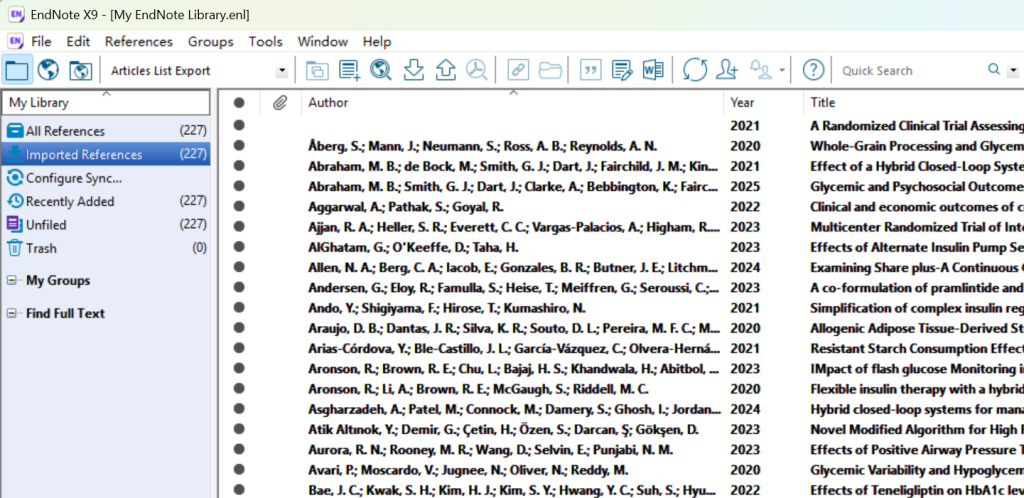
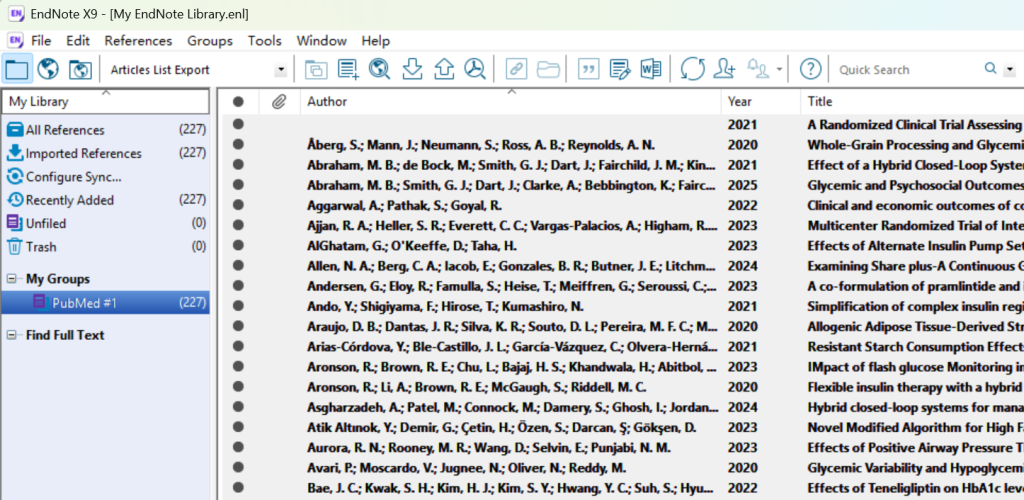
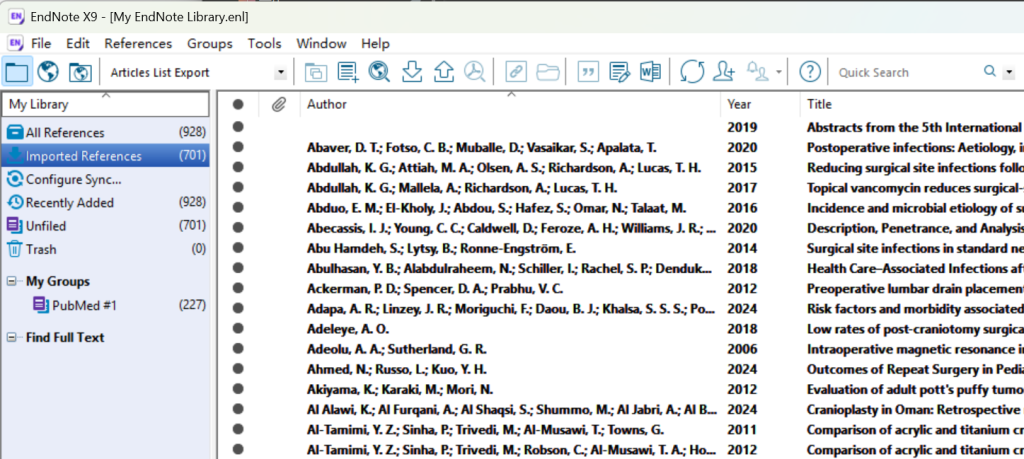
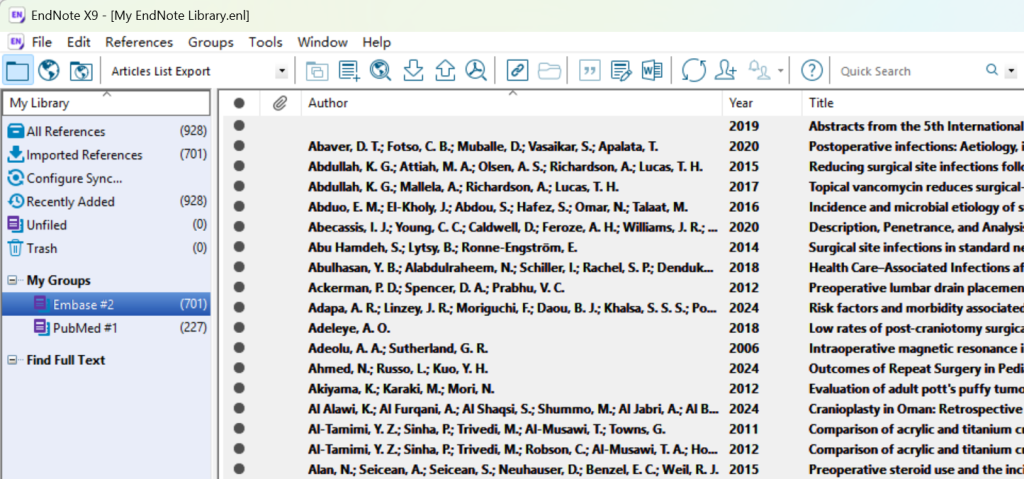
Double-click the .ris file; all Embase references will be automatically imported. Create a group named Embase #2 and drag all imported references into it.
Deduplication
From the top menu, select References → Find Duplicates. Confirm duplicates in the dialog and retain one copy of each.
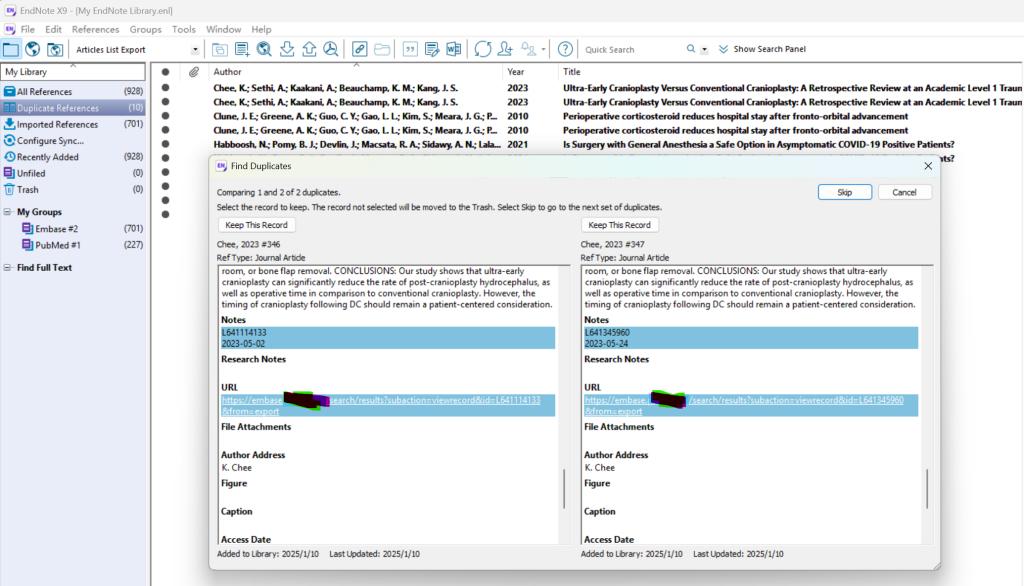
Export
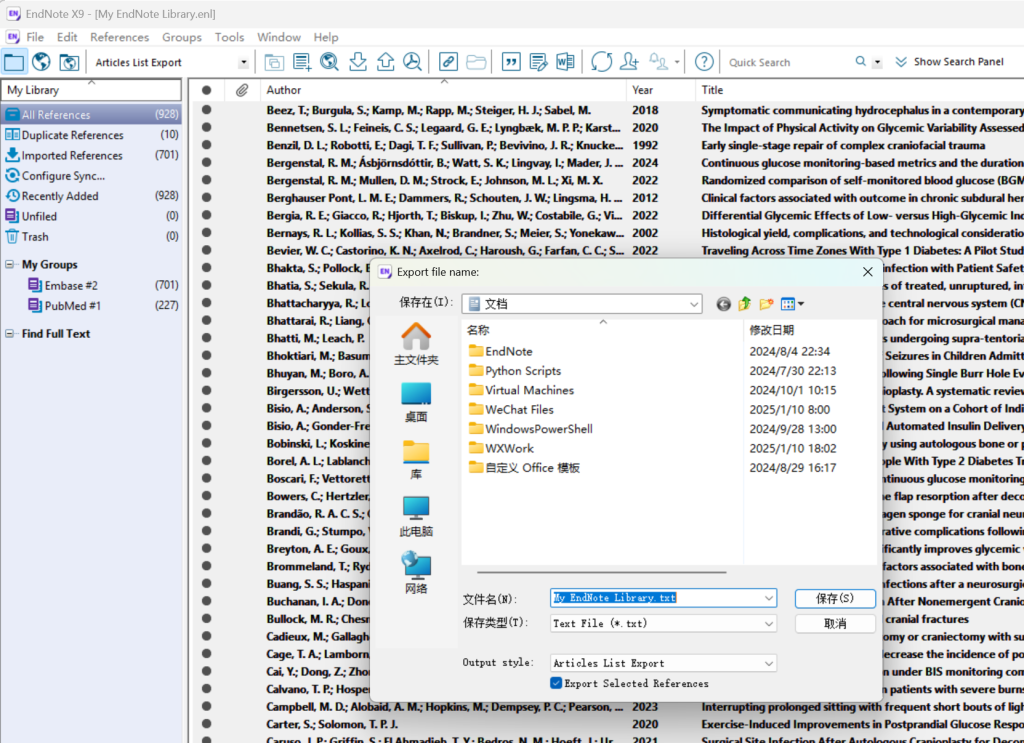
Select all references, then go to File → Export. Set the file type to Text File (*.txt) and export in Author + Title + Abstract format for subsequent AI-assisted screening.
Open the exported .txt file in a text editor to view the complete reference list.
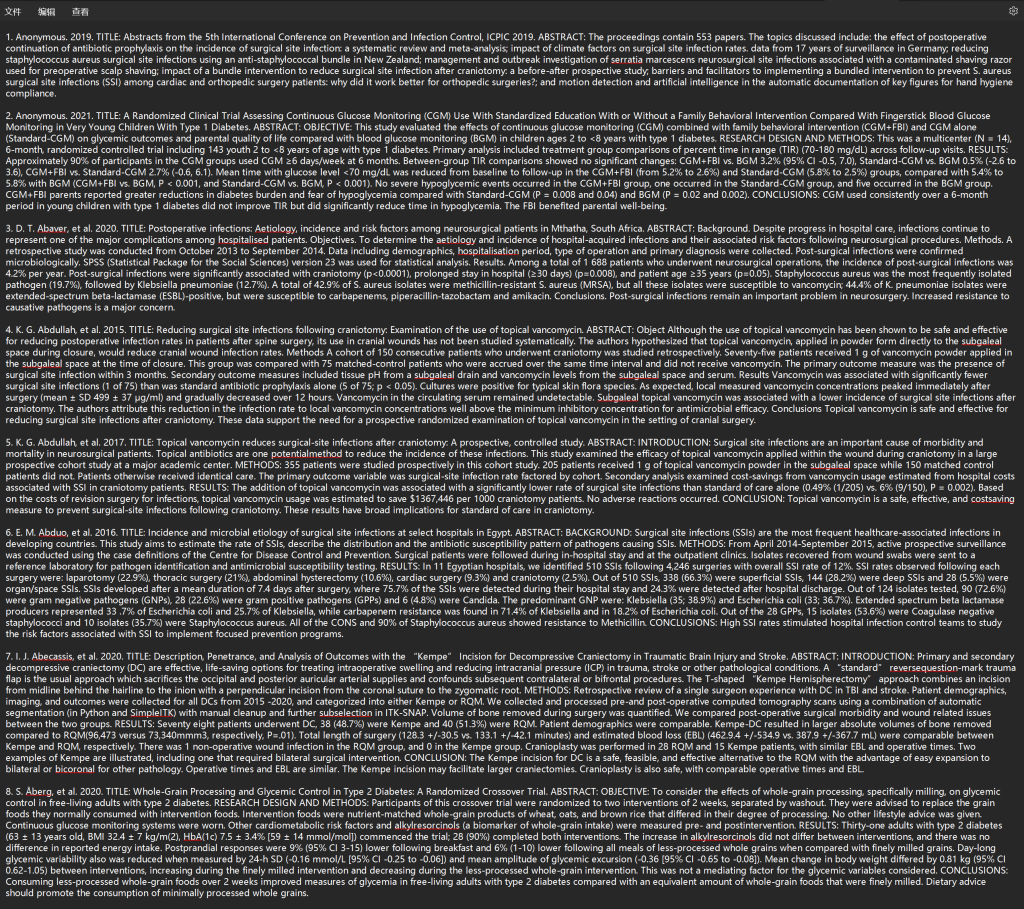
Note: To use this export format, create a new Output Style in EndNote. Name it (e.g., "Export Author-Year-Title-Abstract") and configure the Bibliography → Templates for the Generic reference type using:
Author. Year. TITLE: Title. ABSTRACT: AbstractIn Bibliography → Layout, set the numbering style:
Bibliography Number.End each reference with a carriage return.
Note: The above applies to EndNote X9. Other versions may require adjustments.